
Este artigo ainda não está disponível em português: aqui está a versão em inglês.
SpGauge: bring your SpacePilot PRO screen back to life on Windows 11
The colour LCD of the 3Dconnexion SpacePilot PRO has been dark since Windows 11. SpGauge lights it up again with live system gauges, your AI usage and a program launcher. Free.
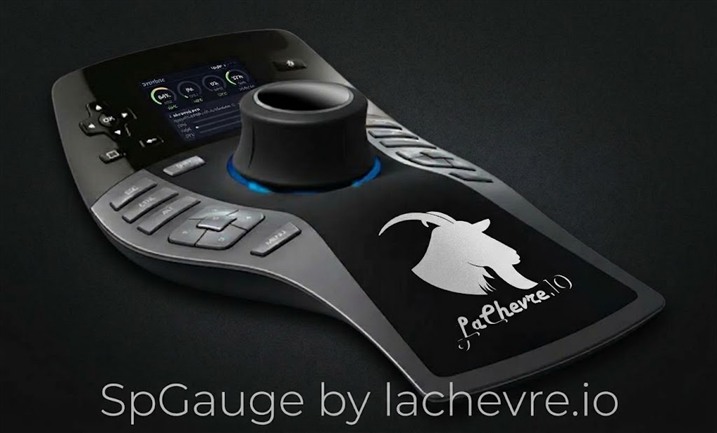
You own a 3Dconnexion SpacePilot PRO? Then you know the beautiful 320×240 colour screen next to the knob. And you probably know it has been black since Windows 11: Memory Integrity refuses the old Logitech driver, and the screen shows nothing at all.
SpGauge turns it back on. And it does far more than the original software ever did: live CPU, GPU and RAM gauges, your Claude, Codex, Gemini and Ollama limits at a glance, and a launcher for your favourite programs driven by the keys around the screen. All in a single, tiny native executable. And it is free.
Why you will love it
- Your screen is useful again. No more expensive black rectangle on your desk: it becomes a dashboard you glance at all day long.
- No vendor software. No Logitech or 3Dconnexion suite, no service, no runtime. One
.exe, and that's it. - Your 3D mouse is untouched. It keeps working exactly as before in your CAD software.
- Made for people who work with AI. See at a glance how much of your Claude session is left, when your Codex limit resets, which Ollama model is eating your VRAM.
- Five languages: English, Español, Français, Deutsch, Português.
- Settings in two clicks from the taskbar icon. The LCD follows instantly.
Every screen, one key away
Switch pages with ← / →, or let SpGauge cycle through them on its own.
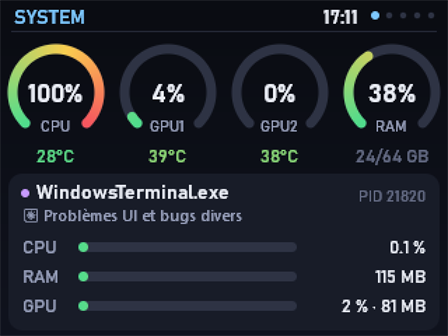
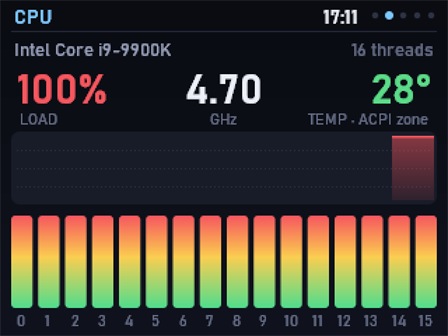
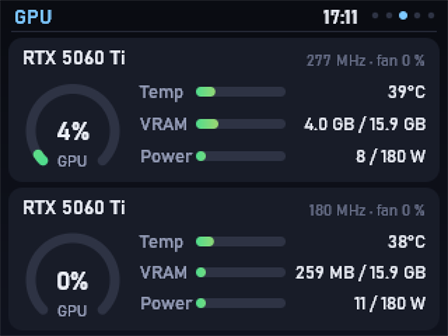
CPU, every GPU and RAM as rings with temperatures, plus the app you are working in.
Load, clock speed, temperature, load history and one bar per logical core: watch your build or your render spread across every thread.
Load, temperature, VRAM, power and fan for each card. NVIDIA cards are read directly through NVML, the others through Windows counters.
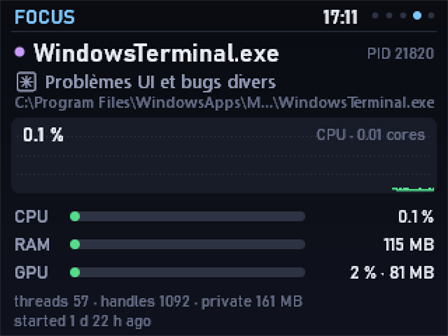
What the app in front of you really costs: CPU history, RAM, GPU and VRAM use, threads, handles and uptime. Perfect to catch the program that slows everything down.
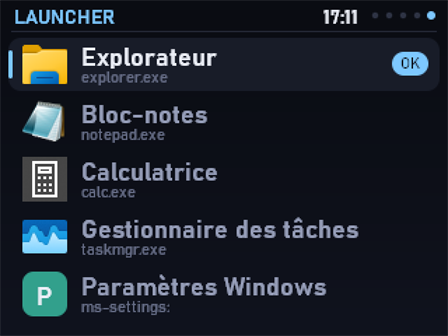
Your programs, documents, folders or web links, with their Windows icons. Choose with ↑ / ↓, start with OK. Your SpacePilot becomes a real control desk.
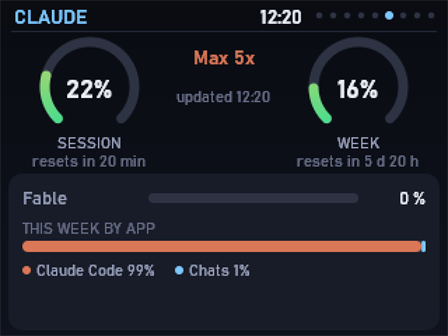
Your Claude plan usage: 5-hour session and weekly limits with their reset times, per-model limits, and how your week splits between Claude Code and chats.
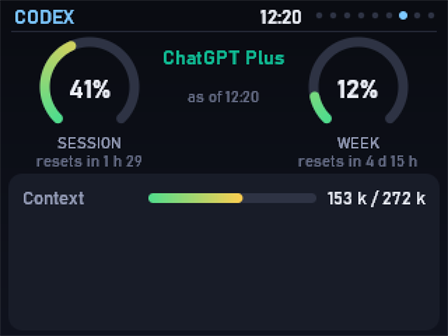
Your ChatGPT plan limits for Codex (5-hour and weekly windows) and the context used by your last request.
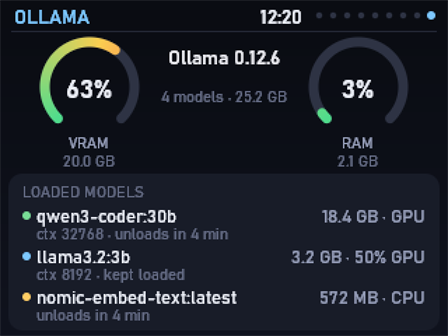
Your local server: loaded models with their size, GPU/CPU split, context and unload time, plus the VRAM and RAM they take.
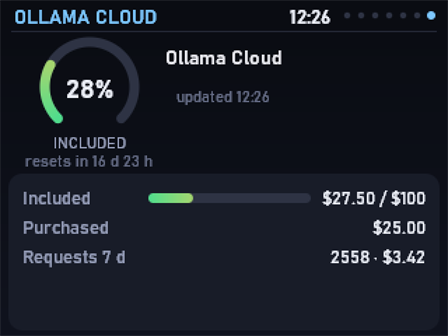
Your ollama.com plan: included credits, purchased credits and requests of the last 7 days.
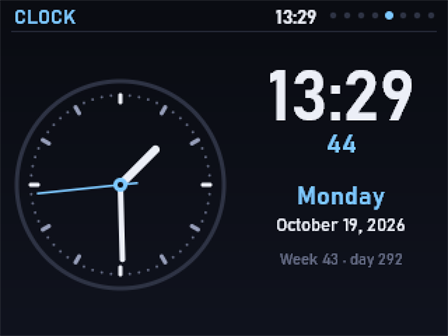
Optional: an analog and digital clock with seconds, the date in your language, the ISO week and the day of the year.
A Gemini page also shows your Gemini CLI quotas: Pro and Flash usage with their reset times, then one bar per model.
Each AI page appears only if its tool is installed and signed in on your PC. Otherwise it stays hidden, and SpGauge never contacts that provider.
Settings that stay out of your way
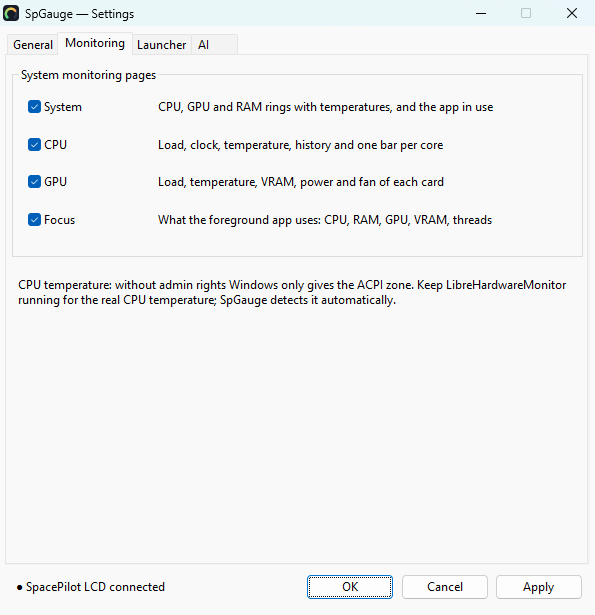
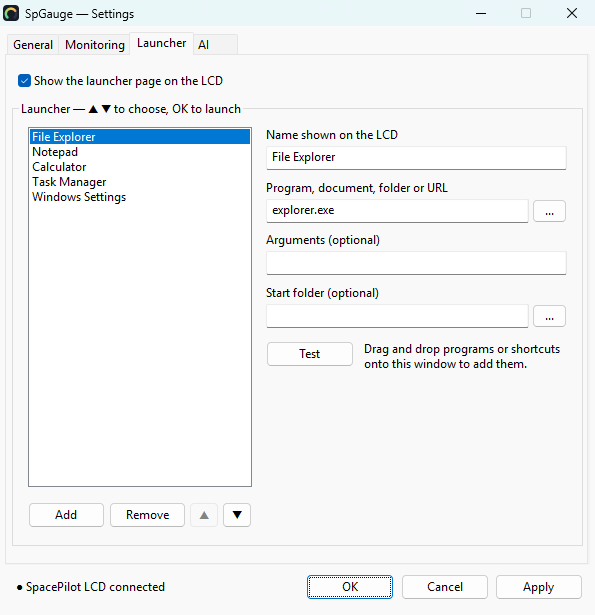
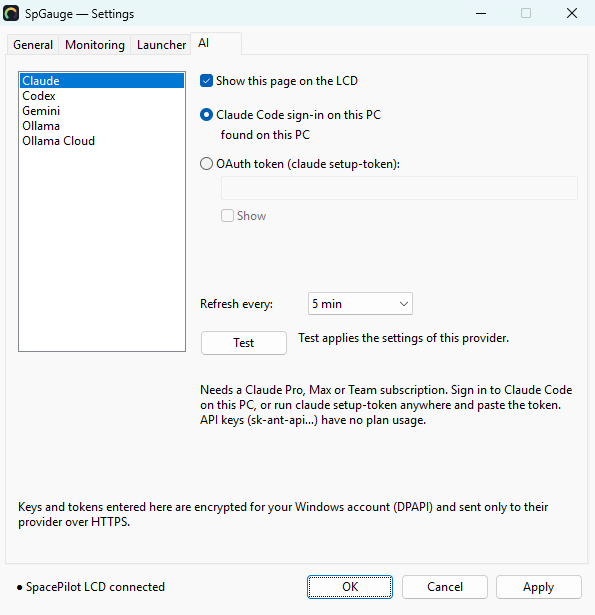
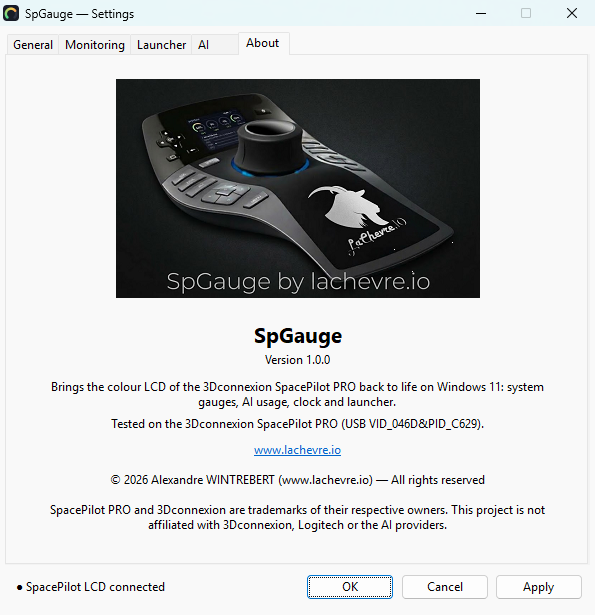
A click on the taskbar icon opens a clear window with five tabs. OK or Apply saves everything, and the LCD follows at once.
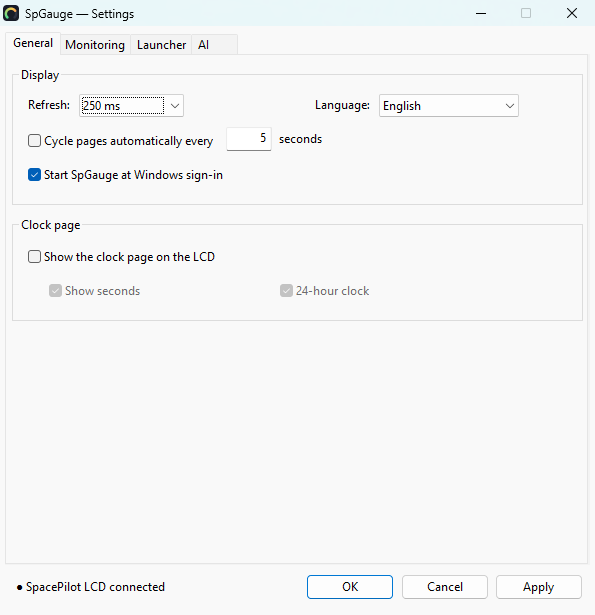
Refresh rate, language, page cycling, Windows startup, optional clock.
Show or hide the System, CPU, GPU and Focus pages.
Drag programs or folders onto the window to add shortcuts.
Detected tools, Test button, encrypted keys sent only over HTTPS.
Version, tested device, link to lachevre.io and trademarks.
Install it in ten minutes
Tested on the 3Dconnexion SpacePilot PRO under Windows 11 Pro with Memory Integrity enabled. Other 3Dconnexion or Logitech LCD devices have not been tested.
1. Give the LCD the WinUSB driver (once)
Interface 0 only. The SpacePilot PRO has two USB interfaces: 0 is the LCD, 1 is the 3D mouse. Changing the driver of interface 1 stops the 3D mouse in your CAD software.
- Download Zadig (portable, nothing to install) and run it.
- Options → List All Devices.
- Choose SpacePilot PRO (Interface 0): its USB ID ends in
00. - Set the target driver to WinUSB and click Replace Driver.
- Unplug and replug the SpacePilot PRO.
2. Start SpGauge
- Sign in to lachevre.io and download spgauge.exe (free account).
- Put it in a folder of your choice, for example
%LOCALAPPDATA%\SpGauge. - Double-click it. Windows may show a SmartScreen warning, because the executable is signed by lachevre.io with its own certificate: click More info → Run anyway.
- Within two seconds, the LCD shows the System page and the SpGauge icon appears at the bottom right of the taskbar (under the ^ arrow if Windows hides it).
- To start it at every Windows sign-in, tick Start SpGauge at Windows sign-in in the General tab of the settings.
That's it: your SpacePilot PRO is back in business.
Warranties
SpGauge is free. The executable is available to signed-in lachevre.io members, in the downloads block below. Creating an account takes a minute.
SpGauge is provided "as is", without warranty of any kind, express or implied. To the maximum extent permitted by law, the author shall not be liable for any damages arising from its use or inability to use it.
SpacePilot PRO and 3Dconnexion are trademarks of their respective owners; Claude is a trademark of Anthropic; OpenAI, Codex and ChatGPT of OpenAI; Gemini of Google; Ollama of Ollama Inc. This project is not affiliated with or endorsed by any of them.
Transferências
-
SpGauge 1.0.0 for Windows 11 (64-bit, single executable)
Estes ficheiros são só para membros. Entra ou cria uma conta gratuita.